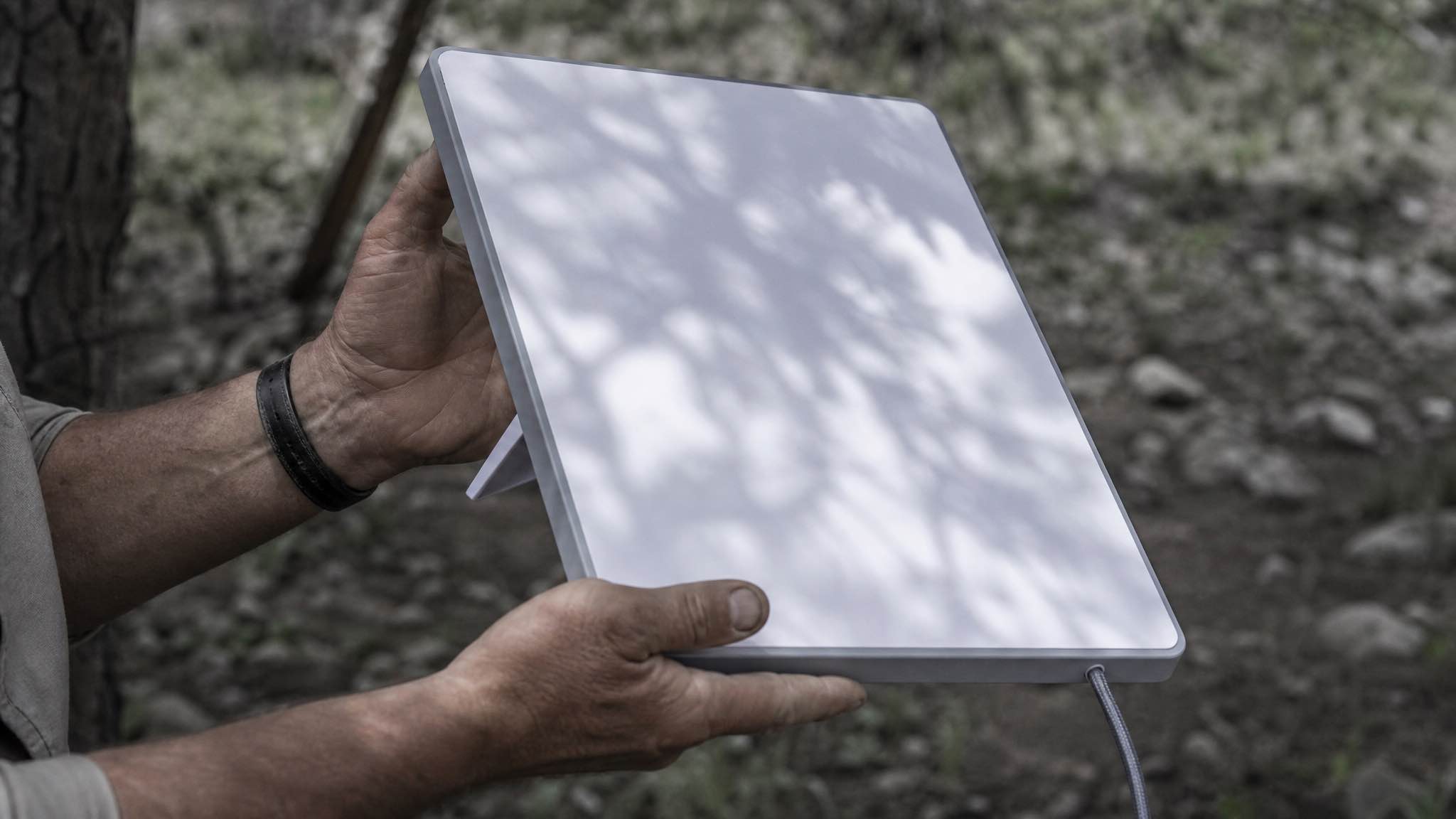
The Starlink® Mini is small (1.16 kg) and sips power, which is why it has taken over for camping and remote work in WA. But the first time you set one up, it almost never just works. Here are the five problems we see most often on returned hire kits, and how to fix each one.
Quick fix guide
| Issue | First thing to try | If that fails |
|---|---|---|
| ”Offline: Searching” or “Disconnected” | 60-second power cycle | Reseat the DC cable at both ends |
| ”Obstructed” warning | Run Check for Obstructions in the app | Move dish 2 to 3 metres clear of trees |
| Slow speeds (under 20 Mbps) | Speed test in app, off-peak | Move router off the floor, away from metal |
| Mini won’t stay on in vehicle | Check 12V cable polarity and amps | Swap to a higher-output USB-C PD source |
| Stuck on old software | Reboot, wait the full 15 mins | Force a manual update in the app |
1. No connection: “Offline”, “Disconnected” or “Searching”
Symptom: The app shows Offline, Searching, or Disconnected. No internet on any device.
Most common cause: A loose or pinched DC cable, or the router still warming up after a power blip.
Fix it in this order
- Check the cable physically. The DC plug on the Mini is small and pops out easily if the cable gets yanked. Unplug both ends and reseat them firmly. Look for kinks, cracked insulation, or green corrosion on the pins, common after a wet trip up north.
- 60-second power cycle. Pull power for a full 60 seconds. Plug it back in and wait up to 15 minutes. The Mini boots, finds satellites, then negotiates a connection. Pulling power early just restarts the clock.
- App-based reboot. If the app still talks to the dish, open Starlink > Settings > Reboot Starlink.
- Check the obvious. Is the 240V adapter actually pushing power? Check the LED on the brick. In a vehicle, check the fuse on the DC cable.
If the dish stays offline after a full reboot and the cables are sound, take photos of your setup and the app error screen, then raise a ticket in the app. Starlink support runs server-side diagnostics you can’t see from your phone.
Renters: if you’re still offline after this, ring us. Most “broken” returns we get are a loose plug or a flat house battery.
2. “Obstructed” warning and dropouts every few minutes
Symptom: Connection works, then drops for 5 to 30 seconds at a time. App shows red “Obstructed” sections.
Cause: The Mini needs a clear view of the sky from about 20 degrees above the horizon, all the way around. Any leaf, gutter or shade-sail blocking that cone causes brief outages as satellites pass behind it.
Run the Obstruction Finder
In the Starlink app: Visibility > Check for Obstructions. Hold your phone over the dish, lens pointed up, and slowly sweep the sky. The app builds a dome map. Blue is clear, red is blocked.
Reposition the dish
In order of effectiveness:
- Move it 2 to 3 metres away from the worst tree. Even a small shift helps.
- Get it up high. A pole mount, ladder rack or tray bar puts it above shrubs and roof lines.
- Watch for moving obstructions. Branches swaying in wind cause intermittent drops the Finder won’t catch in a still moment. If your map looks clean but you still drop out, move the dish.
- Avoid temporary stuff: awnings, washing lines, roof-top tents in the up position.
In dense bush, accept that you’ll get the odd dropout. Streaming will rebuffer; video calls will glitch. For deep canopy, no satellite system fixes it; you need to walk the dish to a clearing.
3. Starlink slow: speed test under 20 Mbps
Symptom: Pages load slowly, video buffers, speed test shows under 20 Mbps.
Cause: Usually one of three things: peak-hour congestion, Wi-Fi (not satellite) bottleneck, or too many devices on the network.
Test the right thing
The Starlink app has three tests under Advanced > Speed Test:
- App to Internet (total round trip, what you actually experience)
- App to Router (your Wi-Fi only)
- Router to Internet (Starlink only, no Wi-Fi)
If App-to-Router is slow but Router-to-Internet is fast, your Wi-Fi is the bottleneck, not Starlink. Move the router.
Before you chase a fault, check the number against what the connection should be doing. Our figures for Starlink speeds in Perth and WA show what normal looks like in the metro and out in the regions, including what peak hour takes off the top.
Things that genuinely slow Starlink down
| Factor | What it does | What to do |
|---|---|---|
| Peak hours (6pm to 11pm local) | Cell congestion, often halves speeds | Run big downloads off-peak |
| Heavy rain or thick fog | Rain fade, drops signal quality | Wait it out, no fix |
| Router on the floor or behind metal | Wi-Fi can’t reach devices | Move router up high, central |
| Too many devices | Bandwidth split too thin | Disconnect what you’re not using |
| Old router firmware | Memory leaks, slow Wi-Fi | Reboot once a week |
Get more from your Wi-Fi
- Stand the Gen 3 router upright in an open spot, not in a cupboard or behind the TV.
- Split 2.4 GHz and 5 GHz bands in the app if you have older devices that struggle.
- Plug laptops in by Ethernet if you have the option, much more stable than Wi-Fi.
- Change the Wi-Fi password if you suspect neighbours or previous renters are still on it.
4. Starlink keeps restarting in a vehicle, or the dish will not stay put
Symptom: Dish slides off the roof at the first corrugation, or the Mini reboots every time the engine starts.
Cause: Two separate problems, both common when people first take a kit on the road.
Mount it like it’ll fall off
The Mini’s kickstand is fine on a flat camp table. It is not a mount. For driving or windy conditions:
- Use a proper Mini mount: pole, magnetic, or a strap rig designed for the kit.
- Mount on a flat, vibration-low surface. Roof rack tray, not the bonnet.
- Tighten everything. Then drive 5 minutes and re-check it. Bolts settle.
- If you’re using it stationary at camp, just put it on the ground in a clearing. Cheaper, simpler, works.
Sort the power properly
The Mini wants 100W (20V at 5A) to perform at full whack. It will run on less, but you’ll see throttling and reboots.
Real-world WA-friendly options:
- 12V DC cable direct to your house battery. This is what we ship with our hire kits. Most efficient, no inverter losses. Watch the polarity, red to positive.
- USB-C PD source. Must be 65W or higher (12 to 48V input). Lower-rated power banks will not run the Mini reliably.
- 240V via inverter. Works, but wastes 10 to 15% of your battery to inverter overhead. Fine if you’ve already got an inverter running.
If the Mini cycles on and off, your power source can’t hold voltage under load. Check your battery state of charge before blaming the dish.
Moving between camps
- Power down the dish in the app before unplugging.
- Pack the dish flat, cable coiled loosely (not bent sharp).
- Set up at the new site, plug in, wait 5 to 15 minutes for it to find satellites.
- If you’ve moved hundreds of kilometres, update your service address in the app so billing matches your cell.
5. Starlink update stuck: dish will not install new firmware
Symptom: The app says an update is available but it never installs, or the dish keeps offering the same update day after day.
Cause: The Mini updates automatically between 1am and 4am local time. If it’s offline or losing power during that window, the update never completes.
Check what version you’re on
Open Starlink app > Advanced > Starlink. Your software version is listed there. The Uptime counter resets to zero after every successful update, so a fresh uptime means a recent update.
Force the update
- Update the Starlink app itself in the App Store or Play Store first. An old app sometimes won’t trigger the dish update.
- Make sure the dish is online and stable for at least 30 minutes.
- Go to Advanced > Update in the app and tap to install if a manual option appears.
- Don’t kill power during the update. Bricking is rare but possible.
- The dish reboots itself once the update completes. Uptime resets, version number changes, done.
If the update keeps failing, you almost certainly have an unstable connection during the update window. Fix the obstruction or power issue first; the update will follow.
When troubleshooting isn’t worth it
If you’ve been at it for an hour and you’re still offline, sometimes the right call is to swap the kit. A faulty cable or dead Mini is rare but it happens. Starlink replaces hardware under warranty if you bought it new.
If you’re hiring from us, just ring. We keep spare kits at the Cloverdale depot and we’ll either talk you through it or swap the gear over.
Rent a Starlink Mini in WA
If you don’t want to spend $289 or more on a Mini for a two-week trip, our Starlink hire in Perth covers complete kits across WA:
- Unlimited, one plan: no caps, no overage bills
- $179/week (7 to 13 days), $22/day from 14 days, $19/day from 25 days, 7-day minimum
- $300 refundable bond, 10% deposit to lock in dates
Every kit ships with the Mini, 15-metre power cable, 240V adapter, 12/24V vehicle cable, and a protective bag. We test every kit before it goes out, and our coverage area covers most popular trips: Perth, the South West, Coral Coast, Pilbara and Kimberley.